
ConfigEditor
Introduce
A JSON configuration file editing tool that can be used to create, view, and edit JSON files, supporting syntax highlighting and automatic formatting.
How to use
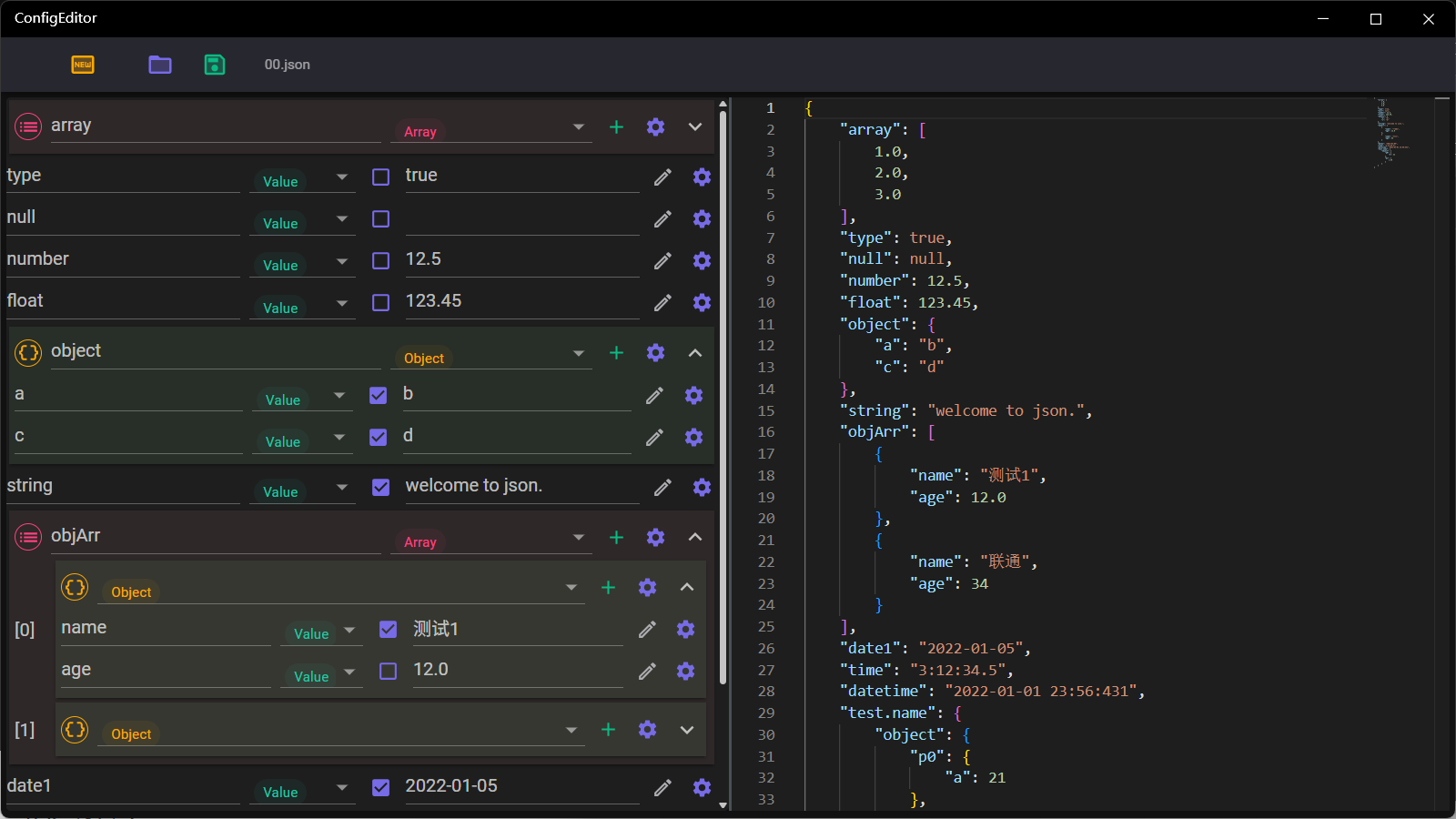
The buttons on the top toolbar are used to: create new JSON, open JSON file, and save JSON file. When creating a new JSON, you can choose create Array or Object.
The lower left area is the form editing area, where you can edit the nodes in the JSON file. The operations that can be performed include:
- Modify property name: The name of a normal property can be edited in the text box on the left
- Change node type: The type dropdown allows you to select the node type, including: value, object, and array
- Switch string value type: For value properties, you can use the checkbox to select whether the value is of string type
- Quick value input: Property values can be quickly entered through the popup menu of the edit icon on the right, supporting values such as: true, false, date, time, color
- Quickly add child nodes: For object and array types, child nodes can be added by clicking the “+” icon button
- Node editing and sorting: The gear icon on the far right of a node is used for node operations, supporting actions such as: append node, copy node, move node up, move node down, delete node
The right side is the text view and edit area. After editing on the right, when the mouse focus leaves the editing area, a format check will be automatically performed. Once the format check passes, the content will be automatically formatted and synchronized to the left side.
Undo is not supported after editing on the left side. Edits on the right side can be undone if they have not been synced to the left side, but cannot be undone after syncing.